HeyGen Avatar 6 creates a talking presenter whose gestures, expressions, and delivery respond to the script. For a product demo or onboarding video, you can build a digital twin once and generate new messages from a script. This guide walks through the setup and gives you a 30-second test for deciding whether the extra credits for Pro are worth spending. I may earn a commission if you buy through the HeyGen links in this guide.
TL;DR
- HeyGen Avatar 6 supports compatible digital twins, photo avatars, and public presenters. You can start with an existing avatar and voice if your look is supported.
- For a new video-based digital twin, prepare footage of the presenter and complete the HeyGen consent step. The person being represented records their own consent.
- At 720p or 1080p, Avatar 6 Turbo uses 20 credits per minute and Avatar 6 Pro uses 40. At 2K, the published rates are 35 and 58 credits per minute.
- HeyGen Creator includes Turbo for paid production. Pro and Business include both modes. Free users can try Avatar 6 Pro within their free video allowance.
- Test Avatar 6 Turbo and Pro with the same 30-second script, presenter, voice, delivery, and resolution. At 1080p, the two takes total an estimated 30 credits on a credit-based plan with access to both modes.
The decision this guide helps you make
A presenter-led video often has two separate goals. The first is explaining something the viewer needs to understand. The second is making the delivery feel appropriate to the moment. A routine dashboard update can work with steady, understated delivery. A founder’s product launch may depend on which words get emphasized and when a visible gesture lands. Use HeyGen Avatar 6 to test the specific moment that matters in the video you actually plan to publish.
The dollar value of an extra take depends on how your team works. If a reviewer approves a product clip after seeing the opening five seconds, spend your comparison credits on that opening and the transition into the demo. If the concern is whether a course presenter still feels natural after several scenes, evaluate those transitions and scene pacing with HeyGen AI Studio before committing the full course.
What HeyGen Avatar 6 does
HeyGen introduced Avatar 6 on November 17, 2026. It uses the script to generate the presenter’s performance, so a reassuring sentence and an excited announcement can produce different movement from the same presenter. The practical change is that delivery becomes something you can revise with the script. If a line sets up an example, you can direct a modest gesture to accompany the relevant words and check whether it lands where a viewer would expect.
Identity and performance
A digital twin is the reusable representation of a person. The look is the visual version you select for a specific video, including how the person appears on camera. A voice supplies the spoken delivery, and the model generates the performance for the script. This distinction matters when reviewing a draft in HeyGen. When the presenter looks wrong, revisit the look. When a sentence sounds wrong, start with the voice, pronunciation, or pacing before changing the model.
Choosing your starting avatar
A public presenter is a practical way to learn the controls before recording anyone. A photo avatar makes sense when a creator has a suitable image they have permission to use and wants a talking head for a short draft. A video-based digital twin fits an ongoing series that needs the same real presenter’s likeness, such as a founder’s weekly product updates. HeyGen Avatar 6 supports these starting points, although some older motion looks and public avatars are incompatible.
How Avatar 6 differs from Avatar V
Avatar V draws on motion from reference footage, while Avatar 6 generates movement based on what the presenter says. For a presenter with characteristic gestures already captured in a reference clip, Avatar V may be worth retaining as a comparison. To direct a performance around specific phrases, choose the newer mode and try the same scene with a neutral opening, a clear emphasis point, and a natural close. HeyGen also recommends considering Avatar IV for stylized and non-human characters when the model appears in your selector.
When to use an existing setup
If your current avatar, look, and voice are compatible, use them for the first Avatar 6 take. That keeps the person and production choices familiar, so you can judge the effect of the model on the delivery. Save a short approved clip from your existing workflow as a visual reference, especially if a brand reviewer has already agreed on how the presenter should appear.
How to create a digital twin for HeyGen Avatar 6
Choose the presenter and intended use
Decide who should appear in the videos and where the output will be used. An agency can ask a client’s founder to create a presenter for public launch videos, while an internal enablement team may use a subject-matter expert for training. In either case, the presenter should know the intended audience and review arrangements. For a video-based digital twin, HeyGen requires the represented person to record a separate consent video, even when an agency sets up the account and uploads the reference footage.
Record reference footage
Use a stable camera at eye level and a clean background. Light the face from the front, keep the mouth visible, and choose a recording space where the presenter’s voice is clear. A single continuous take is a practical starting point. Speak at a familiar pace and leave room in the frame for small gestures if your usual presentation style includes them. Follow the instructions shown in the HeyGen capture flow for the footage length, framing, and any additional photos or audio requested.
Review the footage before submitting it
Watch the reference at normal speed and listen with headphones. Check whether the mouth is easy to see, whether your gaze drifts far from the camera, and whether the audio clips at louder moments. A short reference recording is easy to redo while your camera setup is still in place. Save the version you submit to HeyGen so your team can reproduce the lighting and framing if you need another recording later.
Submit the capture and verify consent
Open the avatar area in HeyGen, start a new avatar for a real person, and follow the capture or upload prompts. When the app requests consent, have the same person follow the displayed instructions and read the consent script. The Help Center describes webcam, smartphone, and upload routes. Wait for the avatar to become available in the workspace, then check whether the intended look appears when you select Avatar 6 for generation.
Start with a representative look
Choose the look closest to the finished video you expect to publish. A head-and-shoulders shot at eye level is easy to compare against a conventional recording. For a product walkthrough where the presenter will sit in a small corner of the screen, review the avatar at the size the viewer will actually see. Generate a short HeyGen Avatar 6 test before investing time in wardrobe options or alternate backgrounds.
Create your first HeyGen Avatar 6 video
Open Guided Creation and choose the look
From the HeyGen home screen, select Create new video and then Guided Creation. Pick the avatar and look you want in the clip, then continue to Script. Use a public presenter to explore the workflow or choose your compatible digital twin to evaluate how your own likeness performs. Keep the first take to one purpose, such as demonstrating a single product feature or describing what happens after a customer books a call.
Add a short script or record your audio
Paste the approved script or use the available upload or recording option for your own audio. Read the text aloud once before generating it. Cut any wording that is hard to say naturally and check company names, acronyms, prices, and URLs for pronunciation. If a spoken button label is important to the tutorial, write the words as they appear on the screen. That gives you a simple reference when reviewing the HeyGen output.
Set the delivery
Open Delivery and preview the audio. Begin with the Natural presenter style for a baseline, then try a directed style for the one section that needs it. A friendly setup video may benefit from a warmer greeting. An update about a reporting error calls for an even tone and a clear next action. Keep the voice and speed fixed once you have an approved baseline, so a change made later in HeyGen Avatar 6 is easier to evaluate.
Select a mode and generate the video
Open Avatar model, confirm the available mode and resolution, and check the expected usage before generating. For a first trial on a plan that offers Turbo, 1080p is a practical comparison setting when that is also the intended delivery resolution. Give the files descriptive names, such as “Weekly dashboard Turbo 1080p take 1.” That makes it easier to match feedback to the correct HeyGen render, particularly when a client asks to see several takes.
Review the first rendered take
Watch the full HeyGen clip before making any edits. On the second pass, check the first sentence, any named feature, the most expressive line, and the last words before the cut. Note the time and the issue in plain language. “The gesture starts after the feature name at 00:16” gives you an edit to try. “Make it more natural” leaves the next take open to the same feedback.
Directing voice and gestures in HeyGen Avatar 6
Set the overall delivery first
Pick a presenter style that fits the relationship between the speaker and the audience. A founder explaining what changed in a release can sound confident without adding excitement to every sentence. A training presenter can use a friendly delivery while keeping operational instructions steady. Guided Creation includes a set of presenter styles and lets you choose a subtler or stronger level of expression. Keep the first pass simple so you can tell which adjustment changes the result in HeyGen Avatar 6.
Place a tone cue where the sentence changes meaning
For an instructional clip, the phrase “one step left” may need reassurance, while “your first report is ready” can carry a small lift. Use Show tags in Guided Creation to view and adjust the cues on those lines, then preview the audio. When the voice sounds hurried, try shorter sentences, punctuation, or a simpler phrase before adding more delivery instructions. Listen for a natural break before the line that asks the viewer to act. Try the delivery controls in HeyGen with your own script to hear the difference.
Tie motion to a specific spoken phrase
A physical instruction works best when it has a clear job and timing. For a feature reveal, ask for a small open-palm gesture when the presenter says the feature name. A direct-to-camera introduction might only need a brief nod after the opening line. In HeyGen Guided Creation, the motion tags control gestures. In AI Studio, put the physical direction in the avatar’s custom motion controls and keep voice cues in the script with a supported voice.
Give reviewers a concrete instruction to approve
Attach the line and motion direction when you send a HeyGen take for review. A useful note is “small nod on ‘you’re all set,’ with hands relaxed through the rest of the sentence.” Once the reviewer agrees on the target, they can judge what appeared on screen and distinguish a movement issue from a wording issue. The same note can guide the next scene if the presenter appears there as well.
Keep a neutral version for comparison
Save the first Natural-style take whenever you are experimenting with performance. If a directed version feels overly animated on a customer support page, the neutral clip gives you a baseline you can approve or adjust. Make one change at a time when testing HeyGen Avatar 6. A change to the voice, framing, and gesture in the same draft can leave you guessing which one improved the line.
Using HeyGen AI Studio for multiscene videos
Give each scene a single purpose
Guided Creation gives you one route to an initial clip. Use HeyGen AI Studio when you want to build several scenes, place screen recordings beside the presenter, or change the presentation as the viewer progresses. Select the avatar in a scene and choose Avatar 6 as the model where applicable. Decide what each scene contributes before rendering. In a dashboard walkthrough, the introduction can establish the problem, the screen recording can show the steps, and the closing scene can state the next action.
Keep narration aligned with what appears on screen
For a software demo, record the steps using appropriate sample data and note when each important control appears. Build the voice line around that timing. A narration that says “open Settings” should coincide with the point when the control becomes visible. The speaker can return on screen at a transition if it helps orient the viewer. Use HeyGen AI Studio to review the relationship between the speaker, interface footage, and timing across the complete sequence.
Keep a consistent presenter across scenes
Set the avatar look, voice, and usual camera position before duplicating related scenes in HeyGen AI Studio. Changes in scale or framing should reflect a change in the purpose of the shot. A wider composition can leave room for a diagram, and a closer shot can support a direct call to action. Review the end of each speaker clip beside the beginning of the next scene so the transition feels deliberate.
Review at the intended viewing size
Export or preview your HeyGen draft in the format the audience will see. A vertical social clip and a widescreen training video give the presenter different space. Check whether captions sit over the presenter’s mouth, whether the important part of a demo screen is legible, and whether subtitles remain readable when a social platform displays interface controls. Test one full clip on the device that matters most to the audience.
Approve the presenter scenes before rendering the full version
For longer work, use a short HeyGen Avatar 6 scene to get sign-off on the look, pacing, and audio before making all the sections. Keep the approved narration, notes, and interface assets together so a subsequent edit can be tied to a particular scene. If the product team changes a button label, you can identify the affected section and decide how much of the project actually needs to be regenerated.
HeyGen Avatar 6 Turbo vs Pro
Turbo is a sensible starting point for frequent, straightforward videos. Pro is the higher-quality option in HeyGen’s model lineup, so it is worth testing when the presenter is prominent and the delivery matters to the audience. The right choice depends on the scene. A one-minute dashboard update and a one-minute customer-facing launch clip use the same published rate within a given mode and resolution, while the value of a stronger performance can differ substantially.

The table uses HeyGen’s published rates for avatar footage. These rates apply to both photo avatars and digital twins. Available modes and resolutions depend on the workspace plan. Check the credit estimate shown in the app before committing a render, especially when your account has a different allowance or when the project includes other generated assets.
Where Turbo makes sense
For routine internal updates, product FAQs, and simple lesson introductions, begin with Avatar 6 Turbo at the intended delivery resolution. Set a clear acceptance standard. The viewer should understand the message, hear names correctly, and see a presenter whose delivery suits the subject. Once an approved take meets those requirements, any additional render should answer a specific review question.
Where Pro deserves a test
Use Avatar 6 Pro for a comparison when the speaker fills much of the frame, the message contains a delicate change in emotion, or a flagship campaign will drive viewers to that clip repeatedly. If the better take gives an important moment clearer emphasis or fewer distracting movements, put that result in the approval notes. That tells the next editor which type of scene may justify the higher credit use.
Generation resolution and final export
HeyGen lists 2K avatar generation rates alongside 720p and 1080p rates. Its pricing page also advertises 4K export on some plans. Treat the resolution selected for the avatar render and the resolution of the finished file as separate settings. Check both when a client asks for a specific deliverable, and compare two modes at the same generation resolution when you are testing performance.
A 30 second Avatar 6 Turbo and Pro comparison
The question for a side-by-side test is whether the more expensive mode improves a moment a viewer would actually notice. In HeyGen Avatar 6, use the same presenter, look, voice, approved script, instructions, and resolution. Make one take in each mode at 1080p. Keep the clip close to 30 seconds, including the final sentence, and confirm the actual length and estimate in the app.
Sample script for a product walkthrough
Set up a fictional reporting product with a friendly greeting, a line that explains the benefit, and a clear on-screen action. Use the following script in both HeyGen Avatar 6 modes with identical punctuation. Give the sentence before the final instruction a short pause. The transitions give you specific moments to compare without needing a longer render.
“If your weekly report takes longer to prepare than to read, start here. Open your dashboard and choose Weekly Summary. You’ll see new inquiries, booked calls, and follow-ups in one place. Here’s what I’d check first. Look for the leads that still need a reply, then assign each one to the right person. When you’re ready, save the view so your team can use it next week.” Try this script in HeyGen
Watch the takes in the order a viewer would
Play both HeyGen clips at normal speed with sound, using neutral labels such as A and B if another person is reviewing them. Ask which clip made the instruction easiest to follow and which line caused hesitation. On the second pass, inspect the timing of the first pause and the delivery of the final action. For a web or social placement, also watch once at the final embedded size.
Compare the moments that affect approval
Score each Avatar 6 take from one to five for clarity, natural motion, gesture timing, lip-sync, and suitability for the intended audience. Record a timestamp for each visible issue. If both takes are acceptable and reviewers cannot identify a meaningful difference, use the lower-credit version. If the higher-credit take fixes a problem that would delay approval or distract customers, you can explain the decision in concrete terms.
Account for the cost of both takes
The example takes use an estimated 10 and 20 credits at 1080p, for 30 credits total before any additional generations. A third 30-second Turbo take would bring the example to 40 credits. Review your HeyGen generation estimate if audio pacing puts the clip over the planned duration or the project requires additional paid features.
HeyGen plans and Avatar 6 access
Free for an initial trial
HeyGen documents access to Avatar 6 on Free, including a way to try Pro within the free video allowance. Public pricing lists watermarked short videos on Free, and the Help Center says the number available can depend on region. A good first use of that allowance is a short script with a line that tests your presenter’s speaking style. Open your workspace to confirm what the account offers before planning a series.
Creator for recurring Turbo videos
The standard HeyGen Creator monthly price published in the United States is $29 with 600 credits. It includes Avatar 6 Turbo and advertises 1080p export. For a solo publisher who routinely makes short tutorials or spokesperson clips, this is a reasonable plan to evaluate if the sample take passes review in Turbo and the monthly credit budget covers the expected rerenders.
Pro for both modes and larger volumes
HeyGen Pro starts at $49 per month for 1,000 credits under its published standard monthly pricing. It includes both Avatar 6 Turbo and Pro. A single producer may use Turbo for most output and reserve Pro for a few clips a client will see repeatedly. Estimate both the number of approved videos and the number of generations required. An account with 1,000 credits can spend them on other supported features as well.
Business for a shared production team
HeyGen lists Business at $149 per month with 1,500 credits and access to both modes. Business is relevant when editors and stakeholders need to work within a shared workspace and coordinate a larger library of approved presenters. Assign who will create new looks, run generation, and sign off on the finished clips before you calculate how many minutes the plan should cover.
Read the account details before choosing
The plan details above reflect HeyGen’s published standard pricing as of November 25, 2026. Actual limits and credit rates may vary by region or account, and legacy plans can have different allocation and top-up rules. Check the comparison and billing panel available in your account, then match the plan to the kind of clips you expect to produce over the next month. Use the actual generation estimate for any client budget.
Budgeting credits per approved video
Count the takes that make it through review
Plan a project around produced and approved clips. A team may generate three Avatar 6 Turbo takes to approve one 45-second video. At the standard 1080p rate, 45 seconds is an estimated 15 credits per take, or 45 credits across three attempts. If the same clip uses three Pro takes, the estimate is 90 credits. Label each attempt and keep the accepted version in your production folder so the credit cost can be tied to a real deliverable.
Separate recurring work from occasional launches
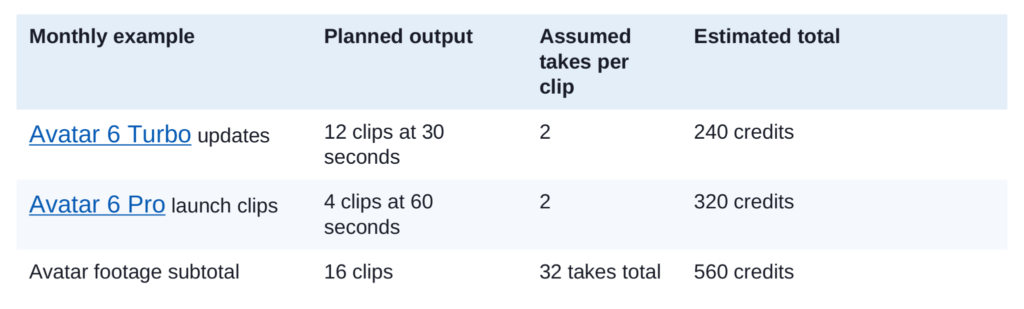
Consider a month with 12 short updates at 30 seconds each and four 60-second launch clips. If each update takes two Turbo renders at 1080p, the updates use an estimated 240 credits. If each launch clip takes two Pro renders at 1080p, the launches use an estimated 320 credits. That puts the example at 560 credits before other features, and the workflow needs a HeyGen plan that includes both modes for paid production.
Allow room for other generation features
If the same workspace creates translated videos, generated images, or B-roll, give those actions their own estimates. HeyGen’s supported creation features can draw from the same credit balance on newer paid plans. Review one week of actual usage. If the first take is often sent back for a script change, moving script approval earlier may save more credits than switching model settings after production begins.
Measure the cost in time as well as credits
For a marketing team, the finished cost includes script prep, graphics, review, and publishing. A reusable avatar can reduce the effort of setting up a new shoot. The team still needs time for approvals and for checking whether the presenter’s performance fits the message. After three completed projects, compare the time spent per published HeyGen clip with the time spent on a comparable filmed clip. Use that comparison when setting the next month’s production budget.
Where a HeyGen digital twin fits into a content workflow
Product demos and feature releases
For a software release, use the avatar to explain what a new feature changes for the viewer, then show the feature in the actual interface. A short product video might open with the problem, cut to the screen recording, and bring the presenter back for the next step. In HeyGen AI Studio, give customers more time to see the interface than the presenter when the objective is to teach a specific action.
Client onboarding and training
For an agency, a digital twin can introduce a consistent client onboarding process. The first video might explain where customers upload assets and who to contact for help. Use generic account details and keep procedures in scenes you can update individually. A steady HeyGen Avatar 6 Turbo delivery can suit instructions where clarity and a familiar person matter more than dramatic gestures.
Course modules and internal enablement
A reusable presenter can record a series of short module introductions. Keep the face and voice consistent, then vary the examples, visuals, and pacing according to the lesson. Check the transitions between presenter speech, slides, and activity instructions in HeyGen AI Studio. A learner should always know when to pause, where to look, and what task marks the end of the section.
Accounting firm FAQs
An accounting firm could use HeyGen Avatar 6 for a short website video explaining what to bring to an initial bookkeeping consultation. Keep the message general and have the firm’s representative approve the script. For a clear structure, state who the consultation is for, describe the categories of documents to prepare, and explain how to send them through the firm’s normal secure channel. Give the reviewer time to check the pronunciation of firm and software names.
A recurring video series
If you publish a weekly update, keep a HeyGen template with the approved look, caption placement, scene lengths, and maximum number of planned takes. Schedule substantive edits before the generation slot. In the first month, test whether the template saves time and whether audience-facing changes can be approved without rerecording the full update. Keep the clips that viewers can act on and revise the format when a different message calls for more screen footage or a live presenter.
Fixing common HeyGen Avatar 6 issues
The avatar or look does not appear
Start by checking whether the selected HeyGen look is compatible with Avatar 6. The Help Center notes that some older motion looks and public avatars are unsupported. Try another eligible look or create a short test with a supported stock presenter. If the model works on that presenter, return to the original selection and check which look the project is using.
A gesture appears on the wrong word
Reduce the motion direction to one action and give it a clear verbal cue. In HeyGen Guided Creation, inspect the placement of the motion tag. In AI Studio, use the avatar’s custom motion controls for gestures and associate the direction with the intended phrase. If the movement still feels late, adjust the sentence to give the action more space and regenerate the smallest representative scene.
The voice sounds flat or rushed
Listen to the preview at the intended speed. Sentence length, punctuation, emphasis, and a suitable voice can change how an instruction lands. Start with a natural version of the sentence and add a targeted cue in HeyGen for the words that need it. A line that alternates between several emotions in a few seconds is harder to review than two short lines with a clear shift.
Lip-sync draws attention in a close-up
Check the problem section at normal speed and isolate the sound you are hearing. Names and uncommon terms can need a simpler spoken pronunciation. If the framing makes a brief mismatch especially visible, compare the same line at the viewing size you plan to publish. A short render in the other Avatar 6 mode can help when the line is central to the video and the rest of the settings are already approved.
An export shows a higher credit estimate than expected
Confirm whether the extra usage comes from a different duration, resolution, or mode. Then check if other assets or features are part of the generation request. HeyGen’s pricing examples use standard rates, while the figure shown before generation is the relevant amount for your specific account and project. Record it before approving a larger project or charging an internal budget.
Recheck the scene after a fix
Play the revised HeyGen clip with the scenes on either side. Check whether the cut still works and whether captions match the new pacing. Keep the last approved version available until the revision passes review.
HeyGen Avatar 6 frequently asked questions
Can I use Avatar 6 without making a digital twin
Yes. HeyGen Avatar 6 works with compatible public presenters and photo avatars as well as digital twins. A public presenter is suitable for learning the workflow before you build your own presenter. Use a digital twin when creating several videos with a specific person’s approved likeness is part of the project.
Can I use my current avatar and voice
HeyGen says compatible avatars, looks, and voices can be used without recording them again. Check the model selector because availability depends on the asset. A 10-to-15-second preview can help you catch a mismatch before you submit a complete script for generation.
Is Avatar 6 Pro worth twice the credits
At 1080p, the published Avatar 6 Pro rate is twice the Turbo rate. The difference is worth testing when lip-sync, expressive delivery, or a particular close-up matters to the intended use. Compare one short scene with the same settings and use the take that meets the viewer’s needs. The same comparison can be reused as a reference for future videos with similar framing and goals.
What should I try first
Draft a real 30-second script with a greeting, one line that needs emphasis, and a clear next action. Start with HeyGen Avatar 6 and use a supported presenter to create the first take. If the output is credible for your audience, note the time and credits required to approve it. Those two measurements give you a practical basis for selecting a mode and deciding whether to make the digital twin part of a recurring production workflow.
About the author
Muhammad Nouman is a Certified GoHighLevel Expert and founder of Ignitto. He helps businesses build marketing and follow-up systems using CRM, automation, and practical AI workflows, including video tools such as HeyGen. Connect with Muhammad Nouman on LinkedIn or book a meeting with Muhammad Nouman.
Affiliate disclosure
I may earn a commission if you make a purchase through the HeyGen links in this article. Using these links does not increase the price you pay.
Read More articles on HeyGen on ILoveGHL





Be First to Comment